

Looking to Download TallyPrime but Not Sure Where to Start?
If you're a commerce student, accountant, business owner, or aspiring finance professional, you've probably heard about TallyPrime. It is one of the most widely used accounting and business management software solutions in India. From bookkeeping and inventory management to GST compliance and financial reporting, TallyPrime helps businesses manage their operations efficiently.
However, many beginners face a common challenge: finding the correct download source and installing the software properly. A simple online search often shows dozens of websites offering Tally downloads, making it difficult to identify the genuine version.
Downloading TallyPrime from unofficial sources can expose your system to security risks, outdated versions, or corrupted installation files. That's why it's important to always use the official Tally download channels.
In this guide, you'll learn exactly how to download, install, and start using TallyPrime safely and correctly.
What is TallyPrime?
TallyPrime is a comprehensive business management and accounting software developed by Tally Solutions. It is designed to simplify accounting, inventory management, taxation, banking, payroll, and business reporting for organizations of all sizes.
Today, millions of businesses use TallyPrime to manage their daily financial operations. Whether you're recording sales transactions, generating GST reports, reconciling bank accounts, or preparing financial statements, TallyPrime provides an integrated platform for handling these tasks.
The latest versions also include features such as connected banking, automated bank reconciliation, cloud backup options, improved reporting dashboards, and invoice management capabilities.
If you're completely new to accounting software, understanding the basics of accounting before using TallyPrime can make learning much easier. We recommend reading our detailed guide on Fundamentals of Accounting Explained with Examples | Complete Beginner Guide to build a strong foundation before entering transactions in TallyPrime.
Why Should You Download TallyPrime?
Before installing the software, it's important to understand why TallyPrime is so popular among accountants and businesses.
Key Benefits of TallyPrime
- Easy-to-use interface
- Fast accounting and voucher entry
- GST compliance support
- Inventory management
- Payroll processing
- Banking integration
- Financial reporting
- Multi-user access
- Business performance insights
- Data security and backup options
For accounting students, learning TallyPrime can significantly improve job opportunities because many organizations use it for day-to-day accounting operations.
System Requirements for TallyPrime
Before downloading TallyPrime, ensure your computer meets the minimum requirements.
|
Requirement |
Recommended |
|
Operating System |
Windows 10 or Windows 11 |
|
Processor |
Intel or AMD Dual Core or above |
|
RAM |
4 GB or higher |
|
Storage |
At least 500 MB free space |
|
Internet |
Required for download and activation |
|
Display |
1366 × 768 resolution or higher |
Although TallyPrime can run on lower configurations, a modern system will provide better performance and smoother navigation.
Where to Download TallyPrime Safely
One of the biggest mistakes beginners make is downloading TallyPrime from third-party websites.
To avoid security risks and installation issues, always download TallyPrime from the official Tally website. The official download page provides the latest version, security updates, release notes, and installation files directly from Tally Solutions.
Official Download Page
Download TallyPrime Officially
Using the official source ensures that you receive:
- Genuine software files
- Latest version updates
- Security patches
- Technical support eligibility
- Future upgrade compatibility
Downloading TallyPrime is just the first step. Once the software is installed, learning keyboard shortcuts can significantly improve your productivity. Check out our article on F1 to F12 Shortcut Keys in Tally Prime Explained to learn the most important shortcuts used by accountants and Tally professionals every day.
How to Download TallyPrime Step by Step
Step 1: Visit the Official Download Page
Open your web browser and navigate to the official TallyPrime download page. You'll see options for different Tally products, including TallyPrime and TallyPrime Edit Log.
Step 2: Choose the Appropriate Version
You will generally see two options:
TallyPrime
This version is suitable for most businesses, students, and professionals. Edit Log can be enabled later if required.
TallyPrime Edit Log
This version is designed for businesses that require permanent audit trail functionality for compliance and internal control purposes.
Choose the version that best matches your requirements.
Step 3: Click Download
Once you've selected the desired version, click the download button.
The installer file (.exe) will begin downloading to your computer. Depending on your internet speed, the download may take a few minutes.
After the download is complete, locate the setup file in your Downloads folder.
Step 4: Verify the Download
Before running the installer, ensure the file has been downloaded completely.
You should have a setup file downloaded directly from the official Tally source. Avoid running files obtained through email attachments, torrents, or unknown websites.
How to Install TallyPrime
After downloading the latest TallyPrime setup file, the installation process takes only a few minutes. Whether you're installing TallyPrime for the first time or setting up a new system, following the correct installation steps ensures a smooth experience.
Before you begin, make sure you have administrator rights on your computer and sufficient storage space available. Tally Solutions recommends using a 64-bit version of Windows for optimal performance.
Step 1: Download the Latest Setup File
Visit the official Tally Solutions download page and download the latest version of TallyPrime or TallyPrime Edit Log.
Once downloaded, the setup file (.exe) will typically be available in your Downloads folder.
Pro Tip
For security purposes, Tally Solutions recommends verifying the SHA-256 checksum of the downloaded file to ensure that the installer has not been modified or corrupted during the download process.
Step 2: Launch the Installer
Locate the downloaded setup file and double-click it.
If Windows displays a User Account Control (UAC) message, click Yes to allow the installer to make changes to your device.
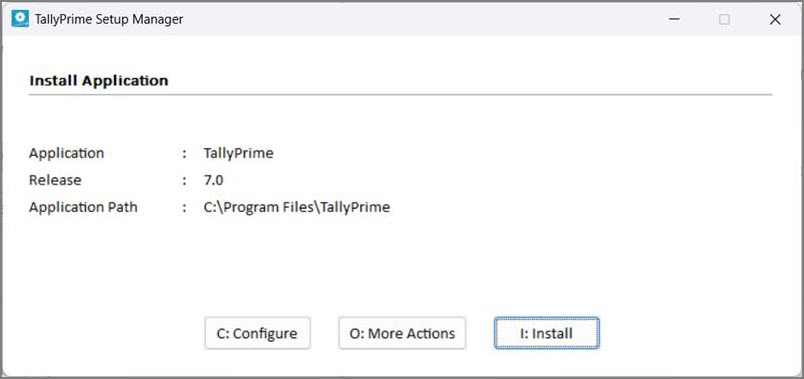
The TallyPrime Setup Manager will open and guide you through the installation process.
Step 3: Choose Installation Type
If you're installing TallyPrime for the first time:
Select:
Install New
This option installs a fresh copy of TallyPrime on your computer.
Existing users upgrading from an older release can also install the latest version separately if they want to keep multiple versions available on the same system.
Step 4: Configure the Installation Path
TallyPrime automatically suggests a default installation location.
Default Installation Folder
TallyPrime - C:\Program Files\TallyPrime
TallyPrime Edit Log - C:\Program Files\TallyPrimeEditLog
Most users can continue with the default location.
If you're already using TallyPrime and want to install TallyPrime Edit Log as well, Tally recommends installing it in a separate folder so both products can run independently when required.
Step 5: Install TallyPrime
Click the Install button.
During installation, the following components are automatically installed:
- TallyPrime Application
- Tally Scheduler
The installation process usually completes within a minute on most modern computers
Step 6: Start TallyPrime
Once installation is complete, click:
Start TallyPrime
The software will launch and display the Welcome to TallyPrime screen.
Congratulations! TallyPrime is now successfully installed on your computer.

Activate Your TallyPrime License
After installation, you'll need to activate your license if you're a new user.
On the Welcome to TallyPrime screen, click:
Activate New License
You will then be asked to enter:
- Serial Number
- Activation Key
- Administrator Email ID
After verification, Tally will send an Unlock Key to your registered email address.
Enter the Unlock Key and complete the activation process. Once activated, you can start creating companies and recording transactions immediately.
First-Time Setup After Installation
When launching TallyPrime for the first time, you'll see options such as:
- Activate License
- Reactivate Existing License
- Start Free Trial
- Continue in Educational Mode
Choose the option that matches your requirements.
For Students
Students can use Educational Mode for learning purposes and practicing accounting entries.
For Businesses
Businesses should activate a licensed version to access all features and compliance-related functionalities.

After installing TallyPrime, one of the first accounting tasks you'll perform is recording transactions. To understand how different transactions are recorded in accounting, read our complete guide on What are the 7 Types of Journal Entries? Complete Guide with Examples & TallyPrime.
How to Start a Free Trial of TallyPrime
If you're new to TallyPrime, you can explore the software before purchasing a license.
The free trial allows users to experience the software interface, accounting features, inventory management tools, and reporting capabilities. Tally provides trial access for evaluation purposes through the official download and activation process.
This is especially useful for:
- Students
- Training institutes
- Small businesses
- Freelance accountants
- New entrepreneurs
Common Download and Installation Problems
Installation File Not Opening
This usually happens due to incomplete downloads or security restrictions.
Solution:
- Re-download the installer from the official website.
- Run the file as Administrator.
Antivirus Blocking Installation
Some antivirus programs may temporarily restrict software installation.
Solution:
- Verify the source is official.
- Temporarily allow the installation process if necessary.
Slow Installation
A slow installation may occur due to limited system resources.
Solution:
- Close unnecessary applications.
- Restart your computer before installation.
Activation Issues
License activation problems are often related to internet connectivity or incorrect license information.
Solution:
- Check internet connectivity.
- Verify license details.
- Contact official Tally support if required.
Pro Tips Before Installing TallyPrime
Pro Tip #1
Always download from the official Tally website.
Pro Tip #2
Keep your Windows operating system updated for better compatibility.
Pro Tip #3
Create a dedicated folder for company data and backups.
Pro Tip #4
If you're learning TallyPrime, start with Educational Mode before purchasing a license.
Pro Tip #5
Regularly update TallyPrime to access the latest GST, compliance, and feature updates.
Why Learning TallyPrime is Important
TallyPrime is one of the most in-demand accounting software skills in India. Knowledge of TallyPrime is often listed as a requirement for:
- Accountant jobs
- Accounts Executive roles
- GST Executive positions
- Finance Assistant jobs
- Bookkeeping roles
Learning TallyPrime not only improves your accounting knowledge but also enhances employability in the finance and accounting industry.
TallyPrime is continuously evolving with new features and improvements. To stay updated with the latest enhancements, GST updates, banking features, and productivity tools, explore our detailed article on TallyPrime Release 7.1: Everything You Need to Know About the New Features. The latest release introduces several improvements designed to simplify business workflows and accounting processes.
If you're planning to learn TallyPrime professionally, these articles will help you build your knowledge step by step:
Conclusion
Downloading and installing TallyPrime is a straightforward process when you use the official source. By following the steps outlined in this guide, you can safely install the latest version and begin your accounting journey with confidence.
Whether you're a student learning accounting, a professional managing client, or a business owner maintaining financial records, TallyPrime offers powerful tools to simplify accounting and business management.
Always remember:
- Download only from official sources.
- Choose the correct version.
- Complete installation carefully.
- Keep the software updated.
With TallyPrime installed correctly, you're ready to start managing accounts efficiently and professionally.
Frequently Asked Questions (FAQs)
1. Is TallyPrime free to download?
Yes, TallyPrime can be downloaded free of cost from the official Tally website. However, to access all features permanently, you may need to purchase and activate a valid license. Students can also use Educational Mode for learning purposes.
2. Where should I download TallyPrime from?
You should always download TallyPrime from the official Tally website. Downloading from unofficial sources may expose your computer to security risks, outdated files, or unsupported software versions.
3. Can I install TallyPrime on a laptop?
Yes. TallyPrime can be installed on desktops and laptops running supported Windows operating systems. Ensure your device meets the recommended system requirements for smooth performance.
4. What is the difference between TallyPrime and TallyPrime Edit Log?
TallyPrime Edit Log includes a permanent audit trail feature that records changes made to transactions. It is particularly useful for businesses requiring enhanced compliance and internal controls.
5. Can students learn TallyPrime without purchasing a license?
Yes. Students can use TallyPrime in Educational Mode to practice accounting concepts, create companies, record transactions, and learn the software interface without purchasing a full license.
Discussion